

Flow CRM by Sensever: Organizing Tasks, Deals, and Team Work
Flow is the Sensever section for tasks, deals, projects and any other work objects, and its CRM template turns it into a lightweight sales CRM: companies, contacts, deals with a pipeline, activities and onboarding projects, all in one workspace. You set up fields, statuses, views and rules yourself, without a developer. It suits small and mid-size teams that want sales and delivery work in one place; it is not an AI sales platform or a marketing automation tool.
This review is based on the current Flow documentation in the Sensever Academy (October 2026). It covers what Flow does today, walks through one deal from first contact to onboarding, and lists the limits you should know before choosing it.

A note on the name
Several unrelated products on the market use names like "Flow CRM", "FlowCRM" or "CRM Flow". This article is about Flow by Sensever, which opens at https://sensever.com/flow under a Sensever account. It has no separate sign-in; the old address flow.sensever.com redirects to the same place. When we say "Flow CRM" below, we mean a Flow workspace created from the CRM template.
What Flow is made of
Flow uses a small set of concepts. Knowing them makes the rest of the product easy to read.
Concept | What it is |
|---|---|
Workspace | A separate work area with its own objects, members and settings. Data from different workspaces never mixes |
Main | Your personal workspace, created the first time you click "Start". It cannot be deleted or renamed |
Object type | A description of objects of one kind, such as "Deal" or "Contact", with its own fields, statuses and views |
Object | One record: one deal, one task |
Field | One property: amount, due date, a relation to another object |
Status process | The statuses of a type and the transitions allowed between them, set up in a visual editor |
View | A saved table, board, calendar or timeline with its own filters |
Automation | A "when → if → do" rule that runs without a person |
Process | A multi-step scenario with approvals, waits and deadlines |
Role | A member's permissions: what they can see and change |
Everything in Flow is an object, so a deal, a contact and a task work the same way: they have a card, fields, a status, a discussion and a change history.
The CRM workspace template
When you create a workspace with the "+" button next to the workspace switcher, you choose a template: "Blank", "CRM", "Tasks", "Product development" or "Upload template" (a template file). The CRM template creates these object types:
Type | Fields and relations |
|---|---|
Company | website, industry, tier, contacts, deals |
Contact | email, phone, job title, company, deals |
Deal | amount, probability in percent, source, contract signed, expected close date, loss reason, loss comment, watchers, company, contacts, activities, projects |
Activity | type, due date (date and time), notes, deal |
Project | description, deal |
Deals move through the statuses "New", "Qualified", "Proposal", "Negotiation", "Won" and "Lost". The deal card has "Won" and "Lost" buttons, and "Lost" asks for a loss reason: price, chose a competitor, no budget, not responding, not a fit, or other. The deal source list includes website, widget or chat, call, referral, social media and other.
The template also creates views: "Pipeline" (a board), "All deals", a "Deal closing" calendar, "My deals", "Lost deals", tables of companies, contacts and activities, and an "Activity calendar". A shared "Sales" dashboard shows the sales pipeline, deals by source, loss reasons and activities by type.
Names are created in your interface language (Flow is translated into 22 languages), while type, field and status keys stay the same in every language, so integrations work the same way.
Rules that work from day one
The CRM template turns on several rules right away:
the new deal owner gets a notification when a deal is assigned to them, and the owner is notified about a new deal;
when a deal is won, Flow creates an "Onboarding" project linked to the deal and messages the owners, workspace admins and deal watchers;
a "Deal close date" reminder arrives a day before and on the expected close date, to the assignee and watchers.
A "Won deal: send to ERP" rule is created as a disabled draft, because it needs your system's address before it can call it.
Working with deals and tasks every day
Four ways to see the same objects
Each type can be shown as a table, a board by status, a calendar by date fields and a timeline (a Gantt chart). The board appears for types with statuses; the calendar and timeline appear for types with a date field.
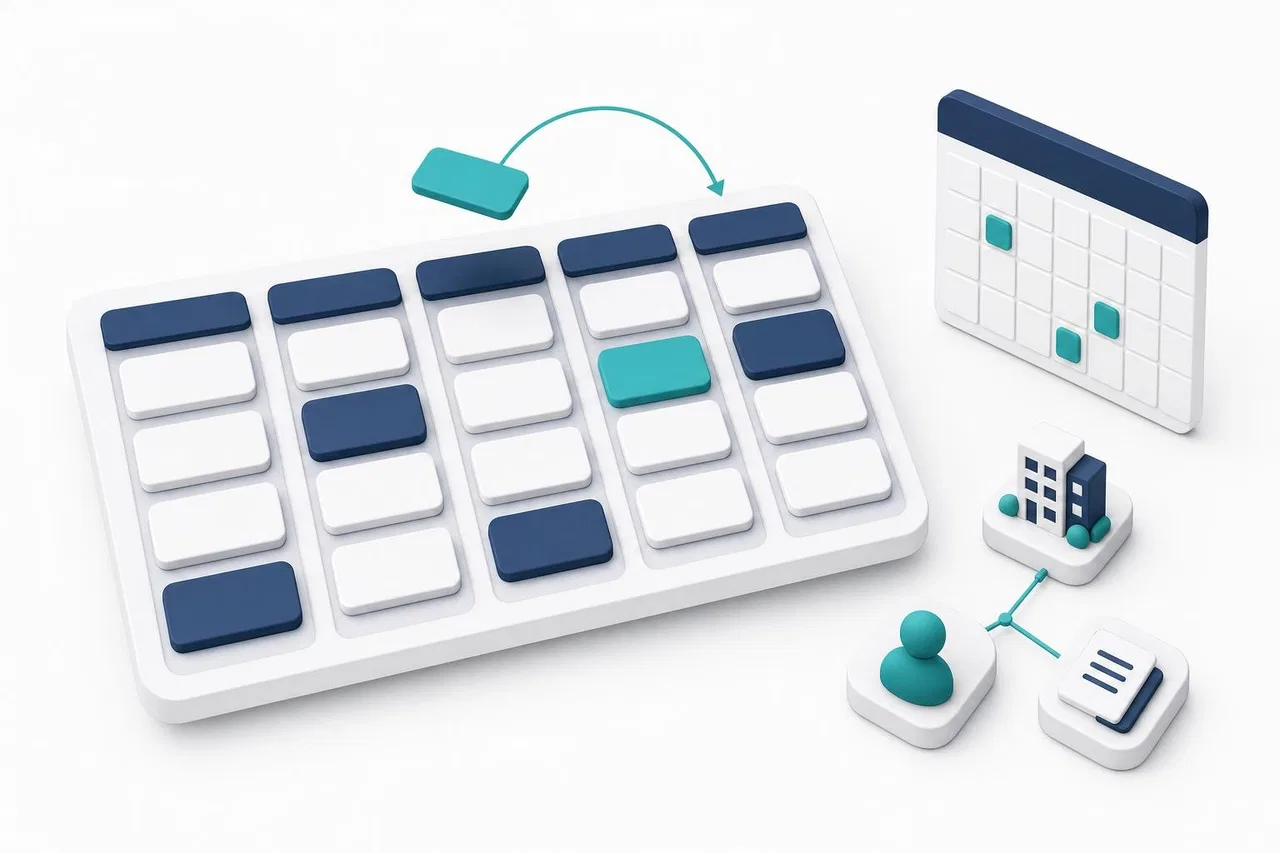
On the "Pipeline" board you drag a deal card to another column. Flow looks for a transition from the current status to that column. If the transition requires fields, such as a loss reason, a window asks for them. Overdue open objects get a red strip on the card, and those due today get a yellow one.
In the table you can edit values right in the cells, create objects quickly with the N key, and select up to 1,000 objects for bulk changes of status, assignee, due date or any editable field. Filters, search and the "Assignee" selector are shared across the table, board, calendar and timeline of a type, and you can save any combination as a personal or shared view.
Flow runs in the browser and works on screens from 360 px wide: on a phone, the table is shown as cards and board cards are moved through the card menu instead of drag and drop.
The object card
Clicking a deal opens its card. In it you change fields and status, see related company, contacts and activities, attach files, discuss the deal in Sensever chat with @mentions, track time, see SLA deadlines and read the full change history. If someone else changed the object while you were editing, Flow shows the latest version instead of overwriting their edits.
Tasks next to deals
The CRM template covers sales. For team tasks, you can add a type from a preset in "Settings" → "Types and fields": "Tasks" (description, checklist, priority, labels, start and due dates, watchers, subtasks), "IT tasks" (with sprints and a burndown) or "Purchases" (with approval). Tasks support subtasks with a "3/5" counter, checklists, tags, recurrence and time tracking with a timer.
If you work in several workspaces, the "All workspaces" mode gathers objects, your tasks by personal sections, approvals and a summary report from all of them in one place. Our guide on CRM and task management explains why keeping tasks and customer work together matters.
Customizing Flow for your process
Your own fields and types
In "Settings" → "Types and fields" you add fields of many data types: text, long text, number, integer, money (amount and currency), yes/no, date, date and time, select, multi-select, member, members, relation, JSON, checklist and tags. A type's schema has a draft and published versions. Safe changes, such as a new optional field, move existing objects to the new version automatically; risky ones, such as removing a field, wait until you confirm the move.
You can also create completely new types: contracts, applications, candidates, equipment. Relations between types can be one to one, one to many or many to many.
Statuses and the process editor
The visual process editor shows statuses as blocks and transitions as arrows. Each status belongs to one of four types: open, in progress, closed or cancelled. The type matters: "closed" stops reminders and SLA timers and drives completion notifications. Transitions can have conditions and required fields. You can also add, rename and delete board columns right from the board.
Automations
An automation is a "when → if → do" rule set up per object type. Triggers include object created, fields changed, status changed, a relation added or removed, a schedule (cron), a reminder, an external event from your system and process events. Actions include changing fields, moving to a status, creating and linking objects, assigning, sending a notification in Sensever chat or an email to workspace members, calling a webhook over HTTPS, and starting a process. Every run is recorded in a run log. See CRM workflow automation for ideas on what to automate first.
Processes and approvals
A process is a multi-step scenario that can run for days: approvals with "Approved", "Rejected" and "On timeout" branches, waits for a set time or a date, waits for an external event, parallel branches and escalations. A typical use is getting a discount or a contract approved before a deal moves to "Proposal".
Reports, SLA and business hours
The "Reports" section has six tabs: "Dashboard", "Funnel" (how many objects reached each stage and the conversion between stages), "Burndown", "Time in status", "SLA" and "Time tracking". An SLA is a time limit for a status, for example "no more than 2 days in Negotiation", and can count only business hours from the workspace's business calendar. Reports are calculated with each viewer's permissions, so a shared dashboard never shows someone deals they cannot see.
Import, export and templates
You can import objects from CSV (up to 10 MB and 100,000 rows) and export them back. Import can create new objects, skip existing ones or update them by a key field such as email. Relation fields are not filled in by import, so you link contacts to companies afterward. You can also download a whole workspace or a single type as a template file and create the same setup elsewhere; the file contains settings, not data.
One end-to-end example: from inquiry to onboarding
Here is how a small agency could run one deal in a Flow CRM workspace. Every step uses features described in the Flow documentation.
Set up. The owner creates a workspace from the "CRM" template and invites two salespeople and a project manager in "Settings" → "Members" with the "Member" role. An accountant joins as a "Viewer" to see the pipeline without editing; viewers are free.
Import contacts. The team exports companies and contacts from spreadsheets and imports them into the "Companies" and "Contacts" tables via CSV, using email as the key field so a repeated import updates instead of duplicating.
A new inquiry arrives. A salesperson creates a deal "Website redesign — Northwind" in the "New" column of the "Pipeline" board, sets the amount, the source "website, widget or chat", the expected close date, and links the company and contact. Assigning the deal to a colleague sends that colleague a notification in the "Sensever Flow" conversation in chat.
Qualify and plan the follow-up. After a discovery call, the deal moves to "Qualified". The salesperson adds an "Activity" for the next meeting with a due date and time and links it to the deal; it appears in the "Activity calendar".
Approve the discount. The admin has created a process with an "Approval" step and added a "start process" action button to the deal type. The salesperson clicks it in the deal card; the owner sees the request under "Approvals" and decides. The process then moves the deal to "Proposal".
Keep the deadline in view. The admin adds an SLA on "Negotiation" of 40 hours counted in business time. If the deal sits there longer, the breach shows in the card and in the SLA report.
Win the deal. The client signs. The salesperson clicks "Won". The template rule creates an "Onboarding" project linked to the deal and messages the owners, admins and watchers.
Deliver. The project manager adds tasks with subtasks and due dates to the onboarding project, tracks time with the timer, and discusses details in each task's comments.
Review the month. On the "Sales" dashboard and the "Funnel" tab, the owner sees conversion between stages and the main loss reasons, and adjusts the process.
Due dates can also go to Google Calendar, Apple Calendar or Outlook through a personal calendar subscription, and notifications can be duplicated by email with a morning digest of overdue and due-today items.
Members, permissions and pricing
Flow has five system roles: owner, admin, member, viewer and a service "integration" role for API keys and automations. Members can edit their own team's objects by default; viewers can only view. You can create custom roles with object and field permissions, and teams for "own team" access. A person joins a workspace only after accepting an invitation.
Pricing, as listed on sensever.com and in the Flow billing article:
Who | Price |
|---|---|
A single person, any number of workspaces | Free |
Each additional staff member who can change data | $5 per month |
Viewers who only view | Free |
Bots, integrations and API keys | Free |
A person who works in several workspaces of the same owner is counted once, and charges are prorated by time. For example, if you have two workspaces with two people besides you who can edit, you pay $10 per month.
What Flow does not do today
Being clear about the limits saves you a wrong choice.
No AI features in Flow. Flow has rule-based automations, not AI. It does not score leads, forecast revenue or write emails. Sensever's AI assistant works in Requests, the customer support section; see AI CRM.
No outbound email to customers. The "Send email" action and email notifications go to workspace members at their Sensever account address. Flow is not a tool for email campaigns or sales sequences.
Requests and Flow are separate sections. Customer conversations from the website widget and messengers live in Requests. The documentation does not describe an automatic link that creates a deal from a request, so a salesperson creates the deal in Flow, or you connect the two yourself through the Flow API and webhooks.
Import does not fill relations. Plan a step to link imported contacts to companies and deals.
Configuration takes some care. Fields, statuses and rules are flexible, but someone on the team has to own the setup, publish schema changes and keep views tidy.
How Sensever helps
If your team already chats in Sensever or answers customers in Requests, Flow keeps work discussions in the same place: every object has a discussion in Sensever chat, mentions notify colleagues there, and Flow notifications arrive in a single "Sensever Flow" conversation with push, quiet hours and an unread counter. One Sensever account covers chat, Requests, Studio and Flow.
To start, open https://sensever.com/flow and click "Start": Flow creates your personal Main workspace with a task board, table and calendar. For sales, add a workspace from the "CRM" template. The full documentation starts at Flow: introduction and Flow: workspaces and templates.

FAQ
Is Flow CRM a separate product from Sensever?
No. Flow is a section of Sensever at sensever.com/flow, using the same account. "Flow CRM" in this article means a Flow workspace created from the CRM template. Other products with similar names are unrelated.
Can I move deals from another CRM into Flow?
Yes, through CSV import into each type's table: up to 10 MB and 100,000 rows per file, with options to create, skip or update existing objects by a key field. Relation fields are not filled by import, so link records afterward.
Does Flow have a sales pipeline board?
Yes. The CRM template creates a "Pipeline" board with the deal statuses "New", "Qualified", "Proposal", "Negotiation", "Won" and "Lost". You can rename, add or remove columns.
How much does Flow cost?
Flow is free for one person. The workspace owner pays $5 per month for each additional staff member who can change data; viewers, bots and integrations are free.
Can Flow send automatic follow-up emails to customers?
No. Flow emails go to workspace members only. Use automations to remind your team to follow up, and send the customer message yourself.
Does Flow work with my calendar?
Yes. You can subscribe Google Calendar, Apple Calendar or Outlook to your Flow due dates, or subscribe to a saved calendar view of a type.
Conclusion
Flow is a flexible work tracker with a ready CRM template: a pipeline of deals linked to companies, contacts and activities, rules that react to status changes, approvals, SLAs and reports, all priced per editing staff member. It fits teams that want sales and delivery tasks side by side and are comfortable configuring their own fields and statuses. If you need AI lead scoring, email sequences or a built-in link between support conversations and deals, plan for other tools or an API integration.

Comentários