

WordPress Live Chat Plugins: How to Choose and Install One
There are two ways to add live chat to WordPress: install the chat vendor's own WordPress live chat plugin from the plugin directory, or paste the vendor's script snippet into your site with a header-and-footer code plugin or your theme. A dedicated plugin is convenient when it exists and is well maintained; the snippet method works with any chat service and adds nothing to your WordPress admin. Whichever you choose, check how it affects page speed, how it looks on phones, and whether it appears on every page type, including posts, archives and WooCommerce pages.
This guide covers both methods, the criteria for choosing a plugin, and a test plan for the finished installation.

Plugin or snippet: what's the difference?
Most live chat services work the same way under the hood: a small JavaScript snippet loads the chat widget from the vendor's servers. A "WordPress chat plugin" for such a service is usually a wrapper that inserts this snippet for you and sometimes adds a settings page or a shortcut to the vendor's dashboard.
Approach | How it works | Good for | Watch out for |
|---|---|---|---|
Vendor's own plugin | Install from Plugins → Add New, connect your account | Non-technical owners; vendors whose plugin adds real features (e.g. WooCommerce data) | Plugin updates, extra admin pages, abandoned plugins |
Header-and-footer code plugin | Paste the vendor's snippet into a site-wide footer field | Any chat service, one place for all scripts | One more plugin to maintain; check where it outputs code |
Theme or child theme ( | Output the snippet from | Developers, version-controlled sites | Lost on theme switch unless in a child theme or custom plugin |
Google Tag Manager | Custom HTML tag fired on all pages | Sites that manage every script in GTM | Harder to debug; consent rules apply to the tag |
Self-hosted chat plugin | The chat runs inside WordPress itself | Full data control | Your server handles real-time traffic; you maintain it |
A self-hosted plugin is the exception: everything, including conversations, lives in your WordPress database. That gives you control but also makes your hosting responsible for real-time connections and storage, which most shared hosting isn't built for.
A note on WordPress.com
If your site is hosted on WordPress.com rather than self-hosted WordPress, plugin installation depends on the plan. WordPress.com's support page says installing plugins is available on all paid plans; free sites need an upgrade first.
How to choose a WordPress live chat plugin
The plugin is the delivery mechanism; the chat service behind it is the product. Choose the service first (our guide on choosing live chat software covers that), then check the plugin itself.
Plugin health checks
On the plugin's page in the WordPress.org directory, look at:
Last updated. A plugin that hasn't been updated for a year is a maintenance and security risk.
Tested up to. It should match your WordPress version or be close.
Active installations and reviews. Read the one- and two-star reviews; they reveal the real problems, such as conflicts or slow loading.
Support forum. Are questions answered, and how fast?
Who publishes it. Prefer plugins from the chat vendor itself over third-party wrappers.
What the plugin loads
Does it load the chat on the front end only, or does it also add scripts and styles to your admin?
Does it load assets on every page even where the chat is turned off?
Does it add database tables or cron jobs? For a chat that runs on the vendor's servers, it shouldn't need many.
Features that matter on WordPress
Page targeting. Can you hide the chat on certain pages (login, checkout, legal pages) without writing code?
Logged-in users. Can the chat recognize your WordPress or WooCommerce customers, so agents know who they're talking to? Check how this is verified — a name passed from the browser alone can be faked.
WooCommerce context. If you sell, does the agent see what the customer is looking at or has in the cart?
Multilingual sites. Does the widget follow WPML or Polylang languages, or at least the browser language?
Consent. Does it integrate with your cookie consent plugin?
WordPress AI chatbot plugins
Many plugins now advertise a "WordPress AI chatbot" that you connect to a model provider with your own API key. Before you install one, check:
Where conversations are stored and who can read them.
Where your API key is stored (often in the WordPress database, readable by anyone with admin access or a database backup).
Whether the bot answers only from your content, and whether there's a human hand-off at all — many of these plugins are bot-only.
Who pays for model usage, and whether there's a spending cap.
Whether bot messages are clearly labeled as AI; in the EU this has been a legal obligation since 2 August 2026 (Houthoff, September 2026).
How to combine a bot with real people is covered in AI chatbots vs. live chat.
Method 1: Install a vendor's live chat plugin
In your WordPress admin, open Plugins → Add New and search for the vendor's name.
Check that the publisher is the vendor, then click Install and Activate.
Open the plugin's settings and sign in or paste your account key.
Configure greetings, colors and team in the vendor's dashboard (most settings live there, not in WordPress).
Clear your site cache (see the speed section) and test.
Method 2: Add the chat snippet with a code plugin
This method works with any chat service that gives you an installation snippet.
Copy the snippet from your chat provider's dashboard. It's usually one or two
<script>tags.Install a header-and-footer code plugin. WPCode, for example, is listed in the WordPress.org directory with more than 3 million active installations and lets you add site-wide header and footer scripts without editing theme files (WPCode on WordPress.org, October 2026).
Paste the snippet into the footer field, so it loads right before the closing
</body>tag.Save, clear the cache and open your site in a private window.
Some themes have their own "custom scripts" or "footer code" field in the Customizer or theme options. That works too, but the code disappears if you switch themes, so a dedicated code plugin is more durable.
Method 3: Output the snippet from a child theme
If you keep your site's code in version control, add the snippet in a child theme or a small custom plugin with the wp_footer hook:
add_action('wp_footer', function () {
    if (is_admin()) {
        return;
    }
    ?>
    <!-- Paste your chat provider's installation snippet here -->
    <?php
}, 50);
Don't edit the parent theme's footer.php directly: the next theme update overwrites it. Block themes (Full Site Editing) still call wp_footer, so the hook works there as well.
Page speed: the part most installations skip
A chat widget is third-party JavaScript on every page, and on WordPress it often meets caching and optimization plugins that change how scripts load.
Measure before and after. Run PageSpeed Insights on your home page, a typical post and a product page before installing. Repeat afterwards. The metric to watch for chat is responsiveness: Google's Interaction to Next Paint counts 200 milliseconds or less as good and more than 500 milliseconds as poor (web.dev).
Check how optimization plugins treat the script. Caching and performance plugins can minify, combine, defer or delay JavaScript. "Delay JavaScript until user interaction" settings can keep the chat button invisible until the visitor scrolls or taps. That may be acceptable — it saves work on page load — but test it, and exclude the chat script from combining or minification if the vendor recommends it.
Don't load two widgets. If you switch from a plugin to the snippet method, deactivate the old plugin. Two chat scripts on a page are a common cause of slow pages and duplicate buttons.
Facades are optional, not required. A "facade" shows a lightweight static button and loads the real chat only when clicked. Google's Lighthouse used to have a dedicated audit recommending facades for chat widgets, but that audit was removed in Lighthouse 13. The idea still helps on slow sites, at the cost of features like unread badges before the click.
Mobile view
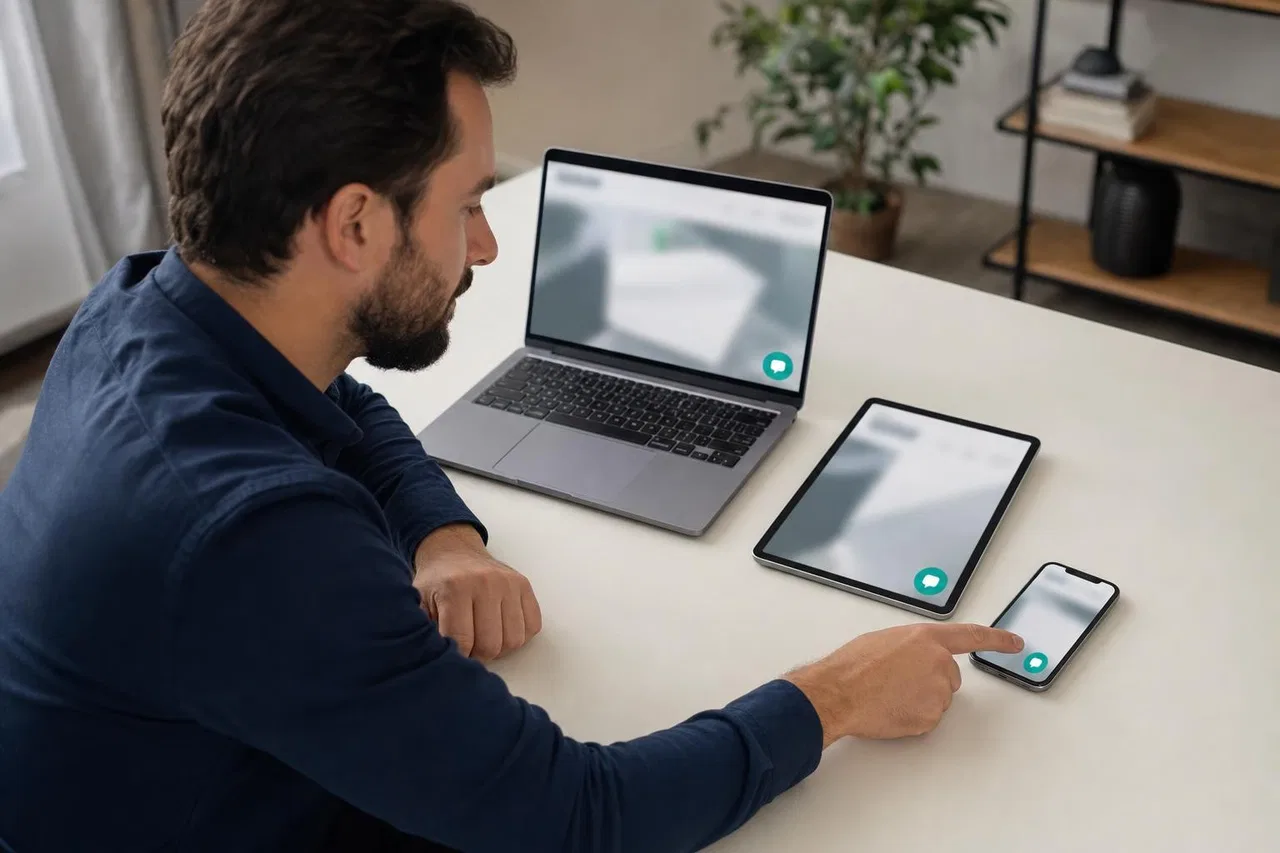
On many sites a large share of visitors arrive on phones, and that's where chat buttons collide with other elements. Check:
The chat button doesn't cover a sticky header, a mobile menu button, a cookie banner or WooCommerce's "add to cart" bar.
The open chat window fits the screen and the input field stays visible above the keyboard.
Automatic pop-ups don't cover the article the visitor just opened.
The button is on the side that doesn't clash with your theme's "back to top" arrow.
Test the chat across every page type
WordPress builds pages from different templates, and a snippet that works on the home page can be missing on others, especially when a page builder or a landing-page plugin uses its own template. Test in a private window:
Home page
A blog post and a category or tag archive
A static page built with your page builder
Search results and the 404 page
WooCommerce: shop, product, cart, checkout and the "My account" page
A landing page made with a separate plugin, if you use one
The same pages while logged in as a customer
On each, confirm that exactly one chat button appears (or none, where you excluded it), send a message, and check that it reaches your team with the correct page address.
How Sensever works with WordPress
Sensever is a messenger with business tools under one account, and its website widget sends visitor messages into Requests, the team's shared queue. There's no dedicated Sensever plugin in the WordPress directory: you install the widget with the snippet method described above. The steps come from the widget installation guide and Website widgets: support, comments and private access.
In Projects, create a project with your site's domain and add the site under "Sites and installation". The site must open over HTTPS;
example.comandwww.example.comare added separately, so add both if your WordPress site answers on both.In the "Widget code" block, choose WORLD or RU and copy the code for that site.
Paste it into the footer field of your header-and-footer code plugin, or output it from a child theme with
wp_footer. One copy only.Clear the cache, open the site, choose "Website chat" in the widget and send a test message. It appears in Requests for that project.
What you configure in Sensever rather than in WordPress:
Appearance and greeting. Title, greeting, button text, color, position, automatic opening and window size are in "Widget settings". The widget runs in its own isolated window, so your theme's CSS doesn't break it.
Where the chat appears. The "Rules" tile can hide or show the chat on pages whose address contains, equals or starts with a value — for example, hide it on
/checkoutor show it only under/shop. Conditions also include device and whether the team is online.Language. The widget can follow the browser language or be set per page with
data-lang, which helps on multilingual sites.Logged-in customers. Your site can pass the visitor's id, name and email with
SenseverWidget.identify(). Data passed only from the browser is shown to the team as unverified; to make it confirmed, sign the id on the server with HMAC-SHA256 using a key derived from the site's server key. On WordPress that's a few lines of PHP, output after the installation code, with the server key kept inwp-config.phpand never in page HTML:
add_action('wp_footer', function () {
    if (!is_user_logged_in()) {
        return;
    }
    $user = wp_get_current_user();
    $hash = hash_hmac('sha256', (string) $user->ID, hash('sha256', SENSEVER_SERVER_KEY));
    printf(
        '<script>SenseverWidget.identify(%s);</script>',
        wp_json_encode([
            'id' => (string) $user->ID,
            'name' => $user->display_name,
            'email' => $user->user_email,
            'user_hash' => $hash,
        ])
    );
}, 100);
Events.
SenseverWidget.track()can report site events, such as a WooCommerce cart left behind, which can trigger an auto-message in the widget.Analytics. One switch sends widget events to Google Tag Manager or GA4 (GTM and GA4 guide).
AI. An optional AI assistant answers from your published articles, files and tables and hands over to your team in the same request (AI chat for your website). Because it runs on Sensever, your model API keys don't live in the WordPress database.
The project owner answers for free; each additional team member who answers customers is $9 per month, and AI is $19 per million tokens with a $5 minimum per project in months it's used (sensever.com).
FAQ
Do I need a plugin to add live chat to WordPress?
No. Any chat that gives you an installation snippet can be added with a header-and-footer code plugin, theme options or a wp_footer hook in a child theme. A vendor plugin is a convenience, not a requirement.
Is a WordPress chat plugin bad for page speed?
Not necessarily, but every chat loads extra JavaScript. Measure key pages with PageSpeed Insights before and after, avoid loading two widgets, and check how your caching plugin handles the script.
Why doesn't the chat appear on some pages?
Common causes are a page builder or landing-page plugin using its own template without wp_footer, a cached old version of the page, a JavaScript delay setting, or a rule in the chat service hiding it on that page.
Can a WordPress live chat recognize logged-in WooCommerce customers?
Many services can, if your site passes the user's details to the widget. Prefer a method where your server signs the data, so a visitor can't pretend to be someone else.
What's the difference between a WordPress chatbot and live chat?
A chatbot answers automatically; live chat connects visitors with people. Most businesses now combine them: the bot handles routine questions and hands everything else to a person in the same chat.
Can I use live chat on WordPress.com?
Yes, if your plan allows plugins or custom code. WordPress.com says plugin installation is available on its paid plans.
Conclusion
Choosing a WordPress live chat plugin is really two choices: the chat service, and how you put its code on the site. A maintained vendor plugin is fine; a code plugin or child theme works for any service. Then do the parts most installations skip: measure page speed before and after, check the phone layout, and test every page type, from archives to checkout. For the general installation steps outside WordPress, see how to add live chat to your website.

评论